


Obsidian
4.21.35K Reviews
App Specs
- Version
- 1.13.8
- Updated On
- License
- Free
- Downloads
- 5,000,000+
- Developer
- Dynalist Inc.
- Categories
- Productivity
- Platform
- Android, iOS
Screenshots



 Analysis by AppCompare
When I first tried to organize notes on my phone, I expected another place to stash reminders and lists. What made this app feel different was the chance to connect separate thoughts into something I could revisit later. Obsidian is a productivity app from Dynalist Inc., and I see it as a good fit for people who want their notes to grow into a personal reference library rather than disappear into a pile of documents.
When getting started feels less simple than it looks
The basic idea is easy to understand: you create a vault, then add notes to it. The part that can slow a new user down is deciding how much structure to build before writing anything. It is tempting to plan folders, tags, links, and plugins all at once. I would resist that urge. Start with a single vault and a few notes; you can shape the structure after you have something worth organizing.
The first useful question is not “How do I make this perfect?” but “What do I want to find again?” A reading list, project notes, or a record of decisions gives the app a clear job. Once you know that job, linking notes becomes more purposeful, and the graph view has a chance to show meaningful relationships instead of a tangle created just to fill the screen.
Obsidian is free, has an Everyone age rating, and is available for Android and iOS. It has a 4.1 average from around 17,000 ratings and more than five million installs. Those figures suggest that it has found a broad audience, but they do not guarantee that its note-making style will suit everyone. The app’s current version is 1.12.7, and it requires Android 5.1 or later.
Setup checks that save time later
Before building a large collection, I recommend making one test note and checking that you can find and edit it again. Give it a clear title, add a short paragraph, and create a second note that links to it. This small trial helps you learn the basic relationship between notes before you invest time moving an entire archive.
It also helps to choose a naming habit early. For example, a project note can start with the project name, while a daily entry can use a consistent date format. The exact convention matters less than using it reliably. Consistency makes search more useful and reduces the temptation to create several near-duplicate notes because you cannot remember what you called the original.
Markdown is a strength if you like writing with lightweight formatting, but it can feel unfamiliar if you expect every control to work like a word processor. I would learn only the few formatting marks you need at first. Headings and lists are enough for many everyday notes; there is no benefit in memorizing a whole system before you have a reason to use it.
Worth Reading Before You Choose

EA SPORTS FC Mobile 26 Is a Bigger Football Game, but It Takes Time

Flipboard Shows What News Apps Must Do Beyond the Feed

Switching to Android Auto Means Rethinking Your Driving Routine

Google Calendar Makes a Crowded Week Easier to Manage

Ludo King Makes the Most of the Minutes Between Plans

Baby Panda World Brings Quick Play to Modern Phones, but Its Game Library Feels Busy
Recovering a workflow when notes get messy
A knowledge base can become cluttered when every passing thought gets its own page and links are added without a clear reason. When that happens, I find it more useful to review a handful of active notes than to redesign the whole vault. Add a sentence explaining why two notes are connected, rename an unclear page, or leave an old idea unlinked until it becomes relevant.
Daily notes can help capture thoughts without interrupting the day, but they work best when they are a starting point rather than a permanent dumping ground. I might jot down a meeting takeaway, a book recommendation, and a task in one daily entry, then later move only the lasting information into focused notes. That keeps the dated record useful while preventing every small detail from becoming part of the long-term reference collection.
If you cannot find something, try searching for the words you remember before creating another note. A simple title or phrase can be more dependable than relying on the graph to locate an item. The graph is best treated as a way to notice relationships and explore a collection, not as a replacement for clear names or a practical retrieval habit.
Where the app is a good fit—and where it is not
I would recommend this approach to students collecting research, writers developing ideas, and curious readers who want related observations to stay connected. It is especially useful when a note may matter in more than one context: a quotation could belong to a book note, a topic note, and a draft outline without forcing you to keep separate copies of the same thought.
For a simple grocery list, a shared household checklist, or a calendar-driven task routine, a conventional to-do or notes app may be quicker. Obsidian rewards people who are willing to maintain a personal system. If you mainly need reminders to arrive at the right time, or want collaboration to be the center of your workflow, I would compare it with tools designed around those needs rather than trying to turn a linked notebook into something it is not.
Compared with a basic notes app, the distinctive appeal here is the ability to link ideas and extend the experience with plugins. Compared with a task manager, the emphasis is less on deadlines and more on context: why an idea matters, what it connects to, and how it changes. That distinction is important. A plugin can add useful options, but each extra tool also brings another choice to configure and maintain. I would install one only when I can name a repeated problem it solves.
A realistic day with a linked notebook
Imagine you are preparing a short presentation. During the day, you capture a useful point in a daily note, save a separate page for the subject, and create a project note with the outline. A link between the project and subject pages gives you a route back to background material later. When the presentation is finished, the project note can preserve decisions and sources, while the daily entry remains a record of when the thought first came up.
This kind of workflow is more valuable than making a large graph for its own sake. It helps answer practical questions: where did this idea come from, what else relates to it, and what should I carry forward? A small number of deliberate links can do more than dozens of connections added simply because the feature is available.
What to do when something seems wrong
When a note appears missing or a workflow stops behaving as expected, I would first check the basics: am I looking in the vault where I created it, is the title different from what I remember, and can a search for a distinctive phrase find it? Then I would reopen the relevant note and check whether the link points to the page I intended. These simple checks often distinguish a navigation mistake from a broader problem.
If a plugin seems to be complicating the experience, try returning to the basic note-taking workflow before changing several settings at once. Simplifying one part at a time makes it easier to identify what caused the friction. I also avoid making a major structural change while I am in the middle of a project; a small, reversible adjustment is safer than reorganizing everything under pressure.
Sometimes the app is not the real cause of a frustrating system. Notes may be hard to locate because titles are vague, ideas have been copied into several places, or the workflow asks you to maintain more structure than you can realistically keep up with. In those cases, a simpler naming rule and fewer categories may help more than another plugin or a full rebuild.
Getting Started with Obsidian
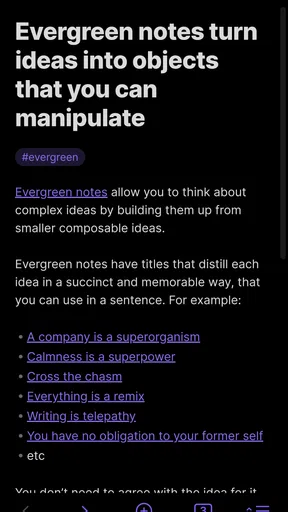
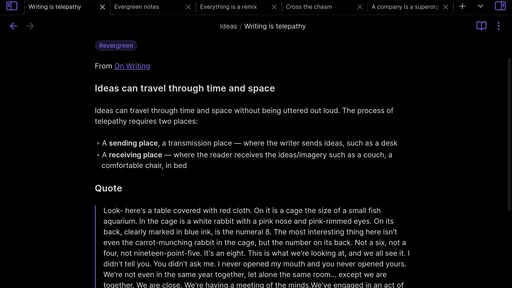
First things first, setting up Obsidian is a breeze. You download it, and boom, you're ready to go. The app is available on both Android and iOS, which is super convenient if you're bouncing between devices like I am. What really caught my eye was the minimalistic design. It’s all about focusing on the content and less about the clutter.
The onboarding process is straightforward. You get a little tour of the features, and then you're all set to start creating your vaults. Yes, Obsidian uses this cool concept of "vaults" where all your notes are stored. It’s kind of like having your own personal library of ideas.
Features That Stand Out
Alright, let’s talk features. One of the standout features of Obsidian is the graph view. Imagine a web of interconnected notes that lets you visualize how your ideas are linked. It’s like mind-mapping but on steroids. This is perfect for people who have a lot of thoughts and want to see how they all connect.
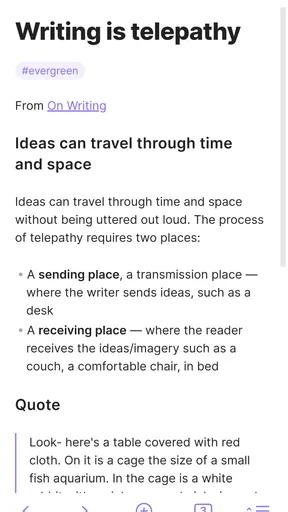
Another thing I love is the markdown support. If you’re familiar with markdown, you’ll feel right at home. You can format your text with ease, and it all looks super clean. Plus, there’s a range of plugins you can add to customize the app to fit your exact needs.
- Graph View - See connections between your notes
- Markdown Support - Easy formatting
- Plugins - Customize your experience
Why You Might Fall in Love with Obsidian
Now, I’ve got to say, what really makes Obsidian special is how it encourages you to think. It’s not just about taking notes; it’s about building a knowledge base. You start to see patterns in your thoughts and can track the development of ideas over time.
One of the things I found myself doing is creating daily notes. It’s like a journal, but with the ability to link to other notes. So, if I jot down an idea for a project or a book I want to read, I can easily connect it to other notes I've made about similar topics. It’s all about creating a web of knowledge.
Some Tips for New Users
If you're new to note-taking apps like this, I’d recommend starting with a small project. Maybe try organizing something simple, like a list of books or movies you want to check out. Use the linking feature to connect different notes, and before you know it, you’ll be a pro.
“The best way to get started is just to dive in and play around with it.”
Also, don’t be afraid to explore the community plugins. There’s a vibrant community of users who are constantly adding new features and tools. You’ll find everything from task management to time tracking integrations.
Wrapping It Up
So, there you have it. Obsidian might seem like just another note-taking app at first glance, but once you dig in, it’s clear that it’s so much more. It’s a powerful tool for anyone looking to organize their thoughts and build a personal knowledge base. Plus, it’s kind of fun to see your ideas come to life in the graph view.
Whether you’re a student, a writer, or just someone who loves to keep track of their thoughts, I’d say give Obsidian a try. You might just find it’s the perfect fit for your workflow. Happy note-taking!
My practical verdict
For me, the best reason to try it is the way it lets a note become part of a larger train of thought. The trade-off is that a flexible system still needs a little care: clear titles, useful links, and restraint with customization. If you want a plain place to record occasional reminders, this may be more involved than you need. If you enjoy returning to ideas and building on them, I think it is worth exploring—starting small and letting the structure earn its place.
Pros
- Highly customizable interface.
- Supports markdown for easy formatting.
- Robust plugin ecosystem.
- Cross-platform compatibility.
- Strong focus on privacy.
Cons
- Steep learning curve for new users.
- No native mobile app yet.
- Limited collaboration features.
- Requires setup for cloud sync.
- Can be overwhelming for beginners.
FAQs for Obsidian
What is Obsidian and what are its main features?
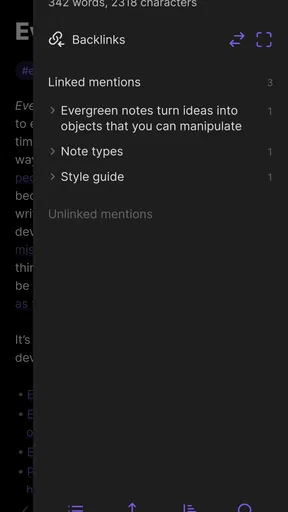
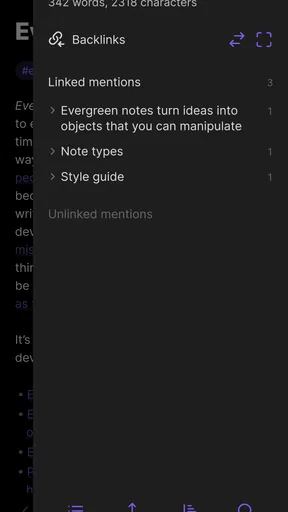
Obsidian is a powerful note-taking and knowledge management app designed for organizing and interlinking your notes. It supports markdown formatting, backlinking, and offers a graph view to visualize connections between notes. Users appreciate its offline functionality and the ability to customize with plugins and themes, making it highly versatile for personal and professional use.
Is Obsidian free to use, and are there any premium features?
Obsidian offers a free version with a comprehensive set of features that are suitable for most users. However, there are optional premium features available through a paid plan, such as commercial use, priority support, and access to insider builds. Additionally, there is a one-time payment option for publishing capabilities and syncing across devices.
How does Obsidian handle data privacy and security?
Obsidian prioritizes user privacy by storing all notes locally on your device, ensuring that you have complete control over your data. It does not require an account or cloud storage, minimizing privacy risks. For those who need syncing, the optional Obsidian Sync service encrypts data end-to-end, keeping it secure across multiple devices.
Can Obsidian be used on mobile devices?
Yes, Obsidian is available for both Android and iOS devices. The mobile app provides the same core functionalities as the desktop version, including markdown support and offline access. Users can seamlessly transition between devices, especially when using the Obsidian Sync service for keeping their notes up-to-date across platforms.
What are the customization options available in Obsidian?
Obsidian is highly customizable, allowing users to tailor their experience through themes and plugins. The community offers a wide range of themes to change the app's appearance and plugins to enhance functionality, such as task management, calendar integration, and more. Users can also create their own plugins, making Obsidian a flexible tool for various workflows.


